

Run every coding agent in one workspace.
Know which ones need you, from your desk or your phone.
Claude Code, Codex, pi, oh-my-pi, opencode or any shell, in real terminals on your own machine. Every session says whether it is working or waiting on you, and why. The whole workspace opens on your phone: the terminal, approvals, diffs and your running dev server.
Open source. No account, relay or telemetry. Your own Tailscale network.
uv tool install swe-mux
TRY THE INTERACTIVE DEMO
The real interface with simulated agent activity. No install, account or provider connection. Open demo to try the terminal keyboard on a phone.
Know which agent needs you
Every session says whether it is working, idle or waiting on you, read from the agent's own hooks, its transcript, the terminal and the process tree rather than the screen alone. Waiting always names its reason: an approval, a question, a rate limit or a login. An agent that is idle with subagents or background tasks still running looks different from one that is done.
Select an image to view it at full size.
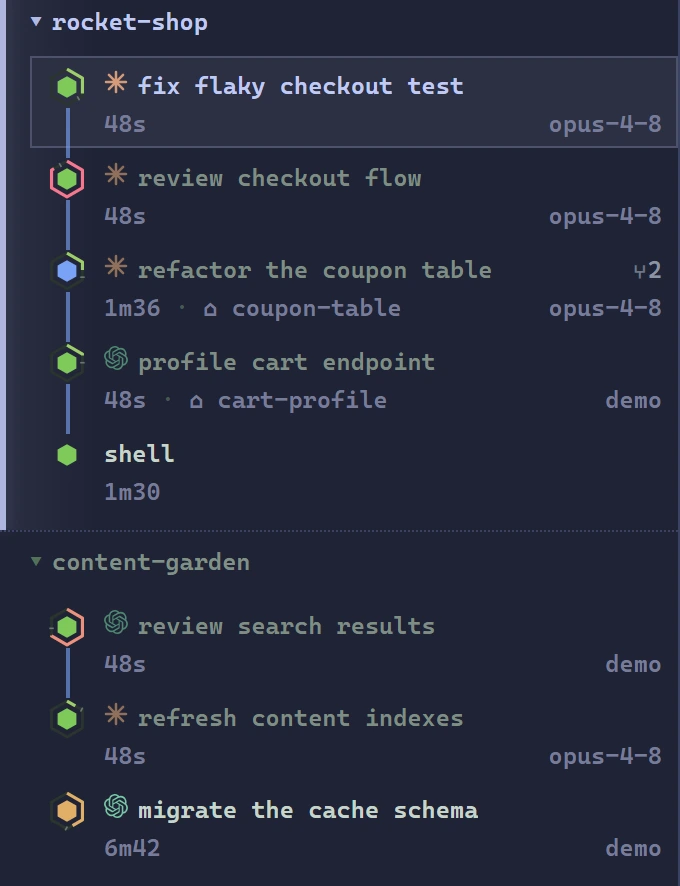
- Working
- Needs you
- Idle

Alerts and push notifications name the session and the reason, and reach a locked phone. A "ready" alert waits two minutes, because 89 of 211 measured idle moments went back to working inside that window. Choose a sound per event, set quiet hours, and keep separate Desktop and Mobile preferences. Status and alerts
The whole workspace on your phone
The phone runs the same application as the desktop, not a companion app: the live terminal with a touch keyboard rail, approvals, diffs, files, notes, the prompt queue and your running dev server. It installs from the browser, with its own touch layout and your desktop arrangement kept intact.
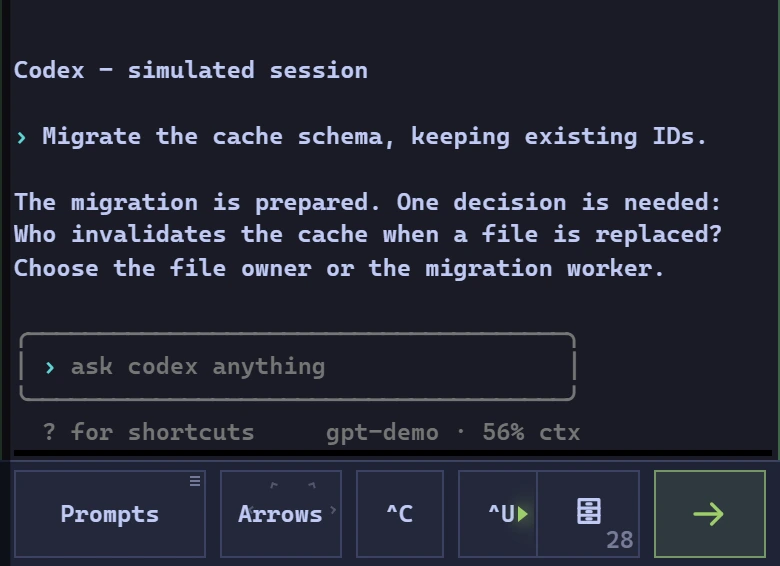
- The same sessions. Continue a conversation from either device. Input ownership keeps two devices from typing over each other.
- The tools you use at your desk. Terminals, Git review, notes, files, prompt queues and previews.
- Your dev server, on the phone. A server on the host's 127.0.0.1 opens in a Preview pane through swe-mux, hot reload and WebSockets included, without exposing another port. Tap a URL an agent printed to open it.
- Your own connection. Reach your machine over Tailscale. No app store, no swe-mux account and no relay.
Connect your phone. HTTPS enables microphone and clipboard APIs; push also needs browser permission.
Every agent CLI in one workspace
Claude Code, Codex, pi, oh-my-pi and opencode are recognized, and any other CLI or shell runs in a real terminal. Type claude or codex in any pane and it becomes a tracked session in place, same pane and same scrollback. Split agents, notes, files and previews into panes, with tabs inside each.
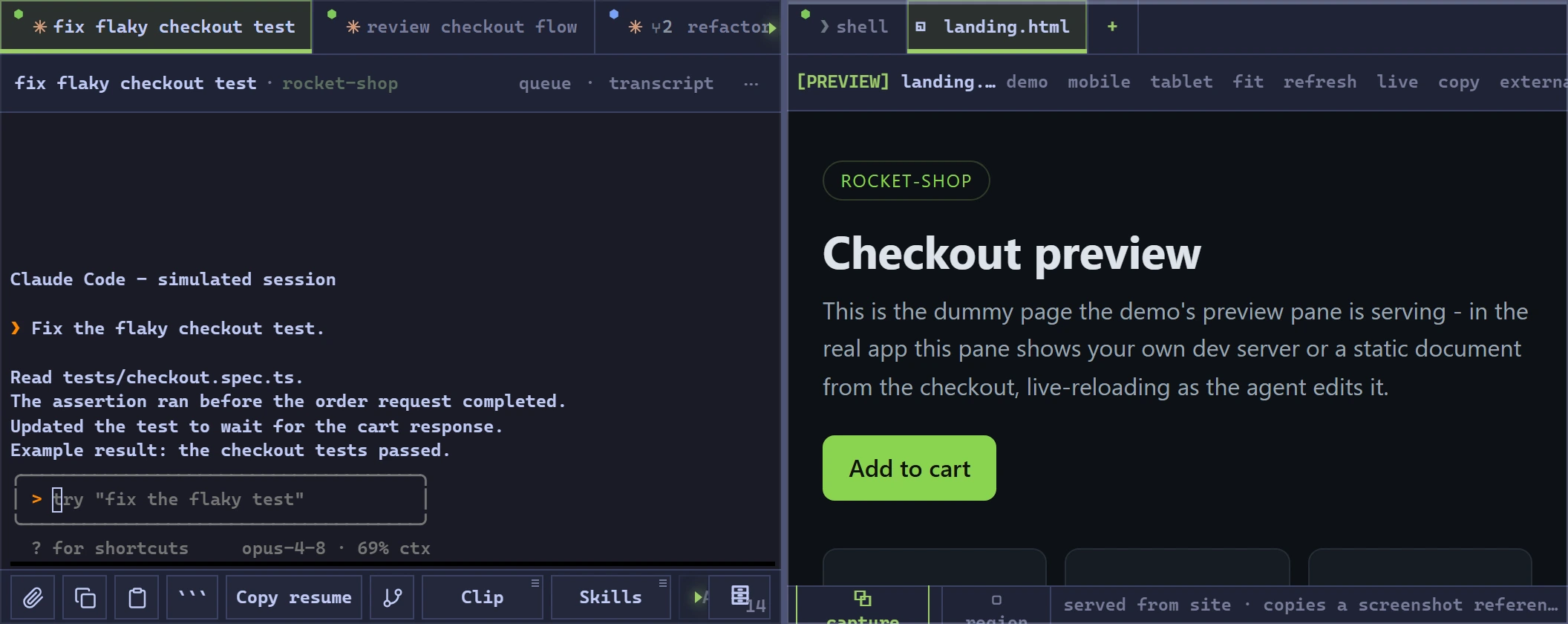
Resume any recognized agent, branch a Claude conversation from any message, restart an agent onto the same conversation, and switch between saved Claude and Codex logins in one click. The Markdown editor supports tables, code blocks and sending a selection to an agent. Workspace guide
See what each agent loaded and did
The Agent tab lists the tools, skills, MCP servers, plugins and hooks a Claude Code or Codex session can see, where each came from, and what changed after the CLI started. Read CLAUDE.md, AGENTS.md and Claude's memory in one place, follow the transcript, and search every agent's past conversations at once.
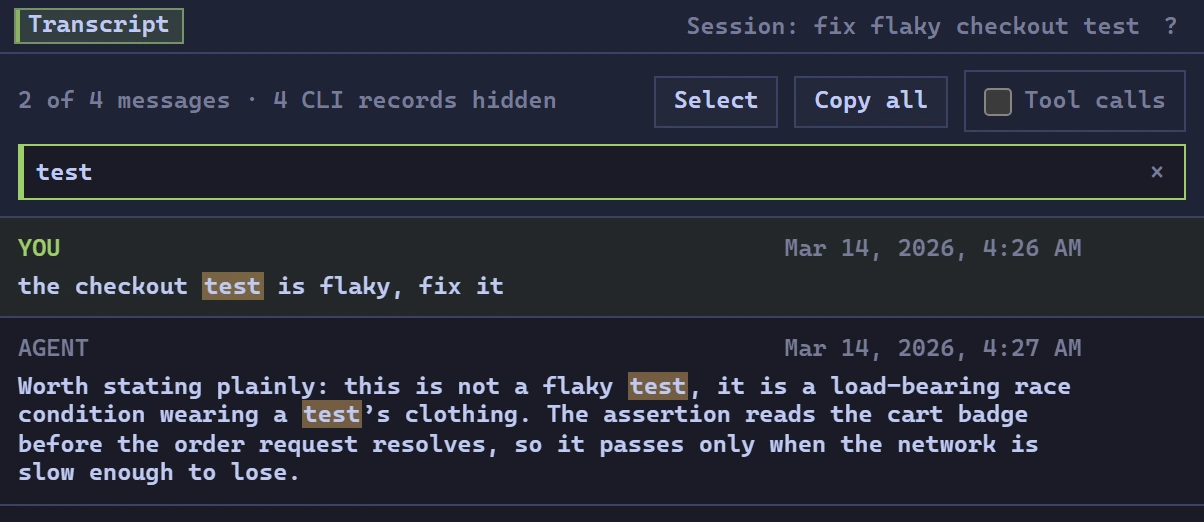
Resume from any search result. Optional evidence capture records observed tool activity and attributes commits to contributing sessions. The Agent tab is what the CLI can see, not proof that an MCP server connected; asking a server for its tools is a separate press. History and auditing
Quota for every account, and where it went
Each saved Claude and Codex account shows its 5-hour and weekly windows, read every 15 minutes, in the sidebar and on the phone's toolbar. Every window is split by where its usage came from, so a jump you did not cause shows up as one.
- Here or elsewhereWhat swe-mux sessions used, the rises those sessions do not explain, and the rises while this computer was not using the account at all, such as another device or the web app.
- HistoryEvery account's percentage over the last week, the time each reading was true, and when the window resets.
- Unexpected resetsA drop of 20 points or more to 10% or less, confirmed minutes later, can sound and push like any other alert.
- Named accountsSwitch the system-wide Claude or Codex login in one click, and give each account a name that replaces its email everywhere.
Readings come from the providers' own CLI endpoints, which are undocumented and can change. Switching is always explicit and meant for accounts you own. Usage and quota
Find what your agents leave running
Every process and listening port is attributed to the session that started it. A process still running after its session ended, one that escaped the session's tree, or one using 90% of a core or 2 GiB of memory is flagged where you can see it.
- One press to end itInterrupt, terminate, or terminate the whole tree. Ownership is checked again right before acting, and nothing is ended automatically.
- Resources at a glanceThe sidebar shows live sessions, system CPU and RAM. Each process shows its CPU, memory and network, each session its totals, and a language server duplicated across sessions is named.
- Ghost windowsOn Windows, invisible headless-browser windows that agents leave over the screen are moved off it.
swe-mux reports what it observes and never guesses that a process is hung. Files, previews and processes
Let agents coordinate
Sessions can exchange messages, read each other's progress and request help within the permissions you set. See who asked, what they requested and where the response went.
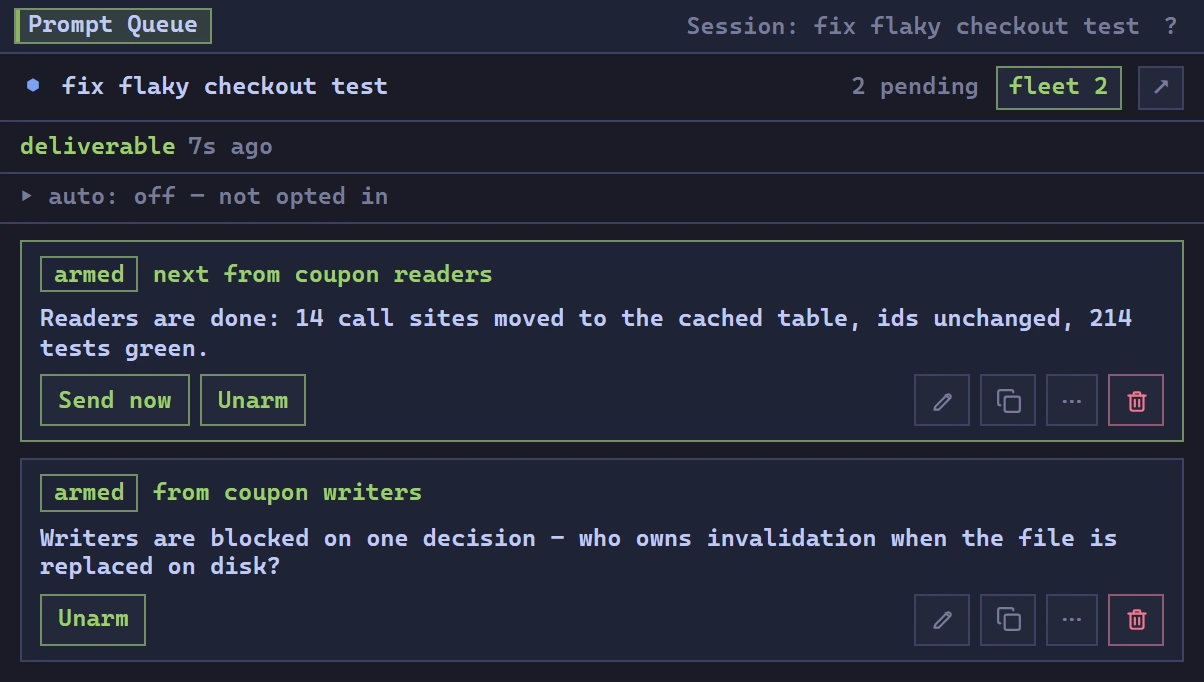
Messages can wait in a session's queue until it is ready. Spawn and control requests require approval by default. Project permissions govern what agents can read and do. Queues and communication
Land finished branches behind your checks
A branch takes its turn in the queue, updates from master, and runs the checks you approved. Passed checks allow a fast-forward; a conflict or failed check stops the request.
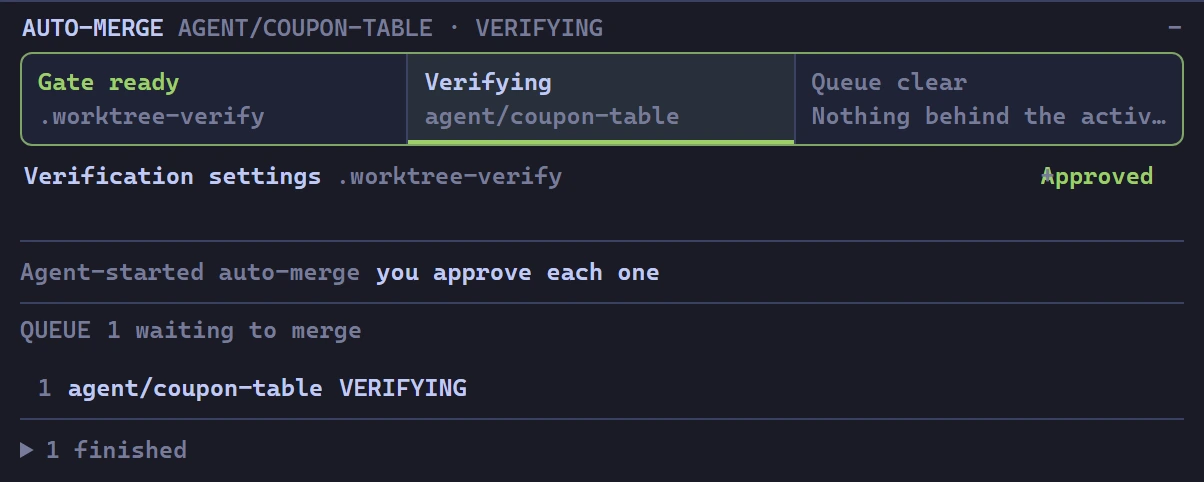
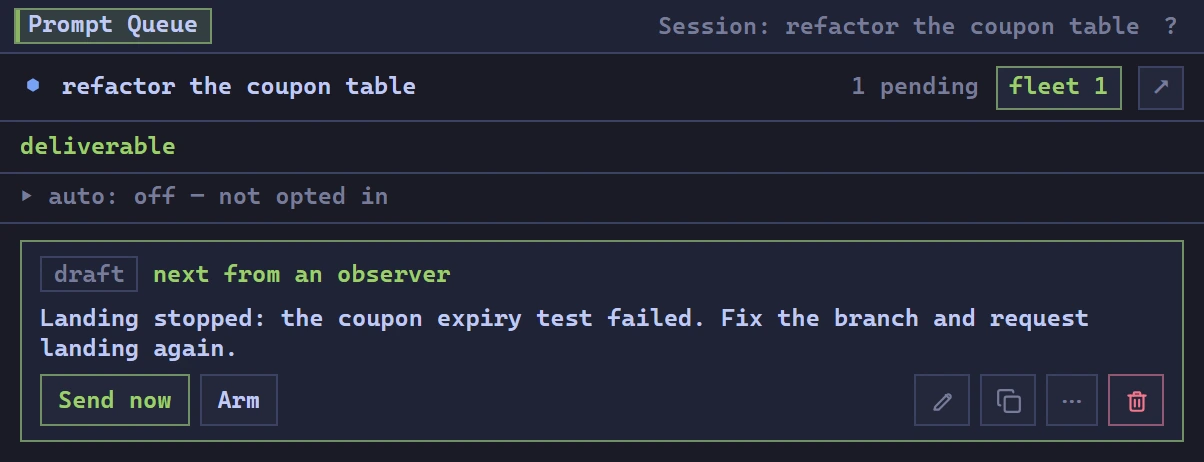
A failed request returns to the agent that owns the branch. An agent cannot approve its own verification command. Enable the required Project permissions before allowing agents to request landing. Try the failed-check walkthrough · Git and landing
Talk to your agents. Ask the assistant.
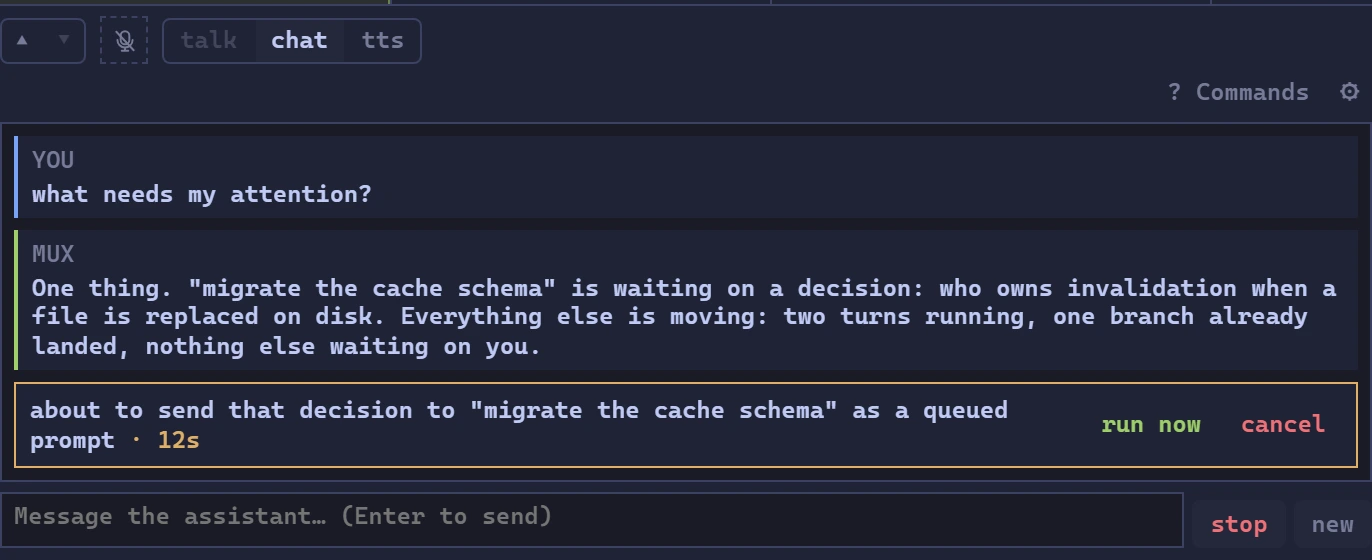
Dictate a prompt, hear an agent reply, or ask which sessions need your attention. Voice works from desktop and phone, with separate controls for listening and playback.
- DictationSpeak into a draft and send it to an agent or text surface. Speech recognition runs on your host machine.
- Read aloudListen to replies or spoken summaries. Choose which sessions generate speech and which device plays it.
- The assistantAsk about your sessions and navigate by name. Actions follow the trust settings you choose; consequential actions require confirmation.
Voice is optional. Speech models download when requested. The assistant uses a configured model endpoint and your budget; experimental Edge speech is a separate opt-in. Voice setup
Keep the same editing habits across agents
Use familiar shortcuts across supported agent inputs. Shift+Enter inserts a new line, Ctrl+Backspace deletes a word, and clicking positions the cursor in recognized composers.
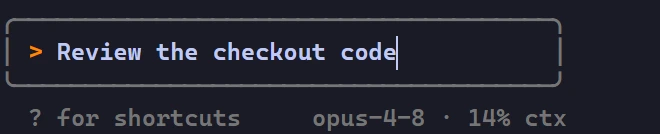
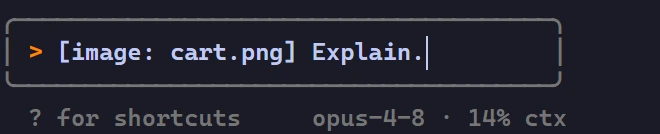
- Your keymapChoose swe-mux, tmux, VS Code, Vim or Emacs shortcuts for workspace navigation. Try a preset in the desktop demo toolbar.
- Image pastePaste a screenshot from your clipboard into an agent that supports image attachments. You can also attach a file.
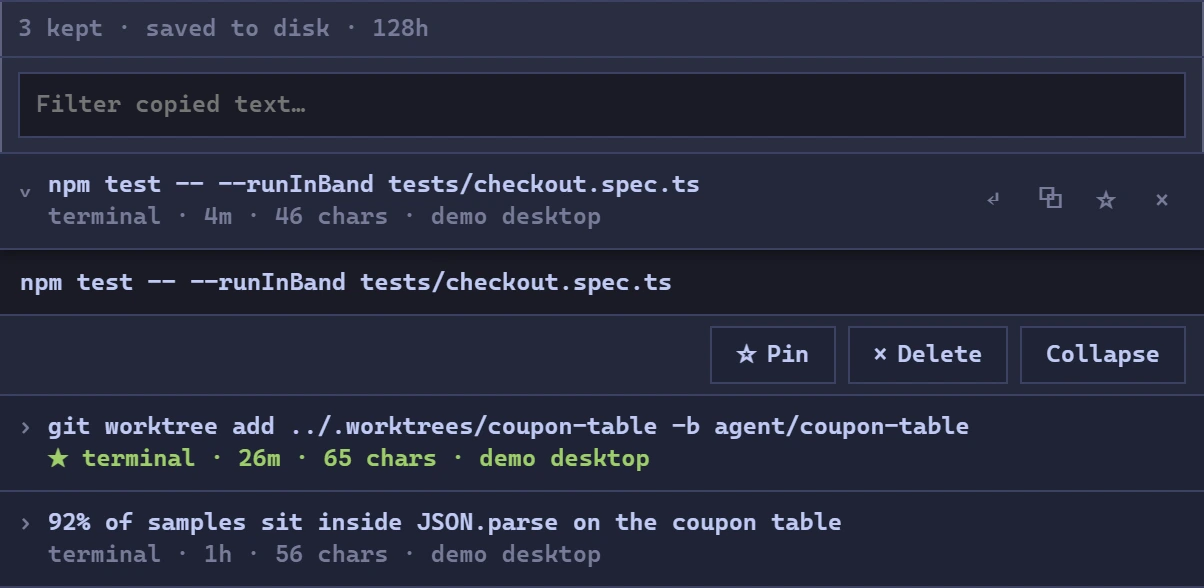
- Shared clipboard historyReuse text copied inside swe-mux from desktop or phone. Pin entries and optionally retain history across restarts.
Workspace keymaps and agent text editing are separate features. Browser-reserved shortcuts and individual CLI capabilities still apply. Clipboard history records in-app text copies; it does not synchronize the system clipboard. Keyboard reference
Keep your sessions through an app restart
A separate supervisor holds the terminals while the daemon restarts or the app updates, and a terminal gateway keeps your typing reaching them through the restart. Reconnect to the working sessions and their scrollback.
The supervisor cannot survive its own death or a power loss. Cold recovery restores affected sessions as readable, resumable records. Session recovery
- Local dataProjects, history and settings live on your machine. No swe-mux account or usage telemetry.
- Your providersAgent CLIs use your existing subscriptions. Optional model features use your endpoint and budget.
- Optional automationEvidence capture, attention analysis and agent control have explicit Project permissions. Start with the workspace and enable what you use.
The update check fetches a static version manifest and can be disabled. See what crosses the network.
Install
You need at least one agent CLI already installed and logged in. swe-mux does not install, manage, or proxy them. It runs the ones you already have, on the subscription you already pay for.
Get the installer or portable archive from GitHub Releases. Direct download details appear here when release metadata is available.
You can also use the Python install below for the same Windows window and tray.
Install with Python
Requires Python 3.12 or newer. The package includes the built interface; Node is not needed.
$ uv tool install swe-mux
$ swe-mux # Windows desktop app
pipx install swe-mux is the alternative isolated install.
For a browser on Windows, Linux or macOS, run swemux start, then open 127.0.0.1:8765.
swemux doctor reports installation and runtime health.
The Windows app includes its tray and native window. First-run setup offers shortcuts. Linux and macOS use the daemon with a browser. All three platforms have required CI checks, including a source-daemon smoke test; that does not replace testing a published release on a clean machine.
Installation, source builds and upgrades · Start your first session · Troubleshooting